 PearPass
Editing An Item In Your Vault
Sometimes you need to update the details of an item in your vault, such as changing a password, updating a username, or adding notes. Here's how to do it.
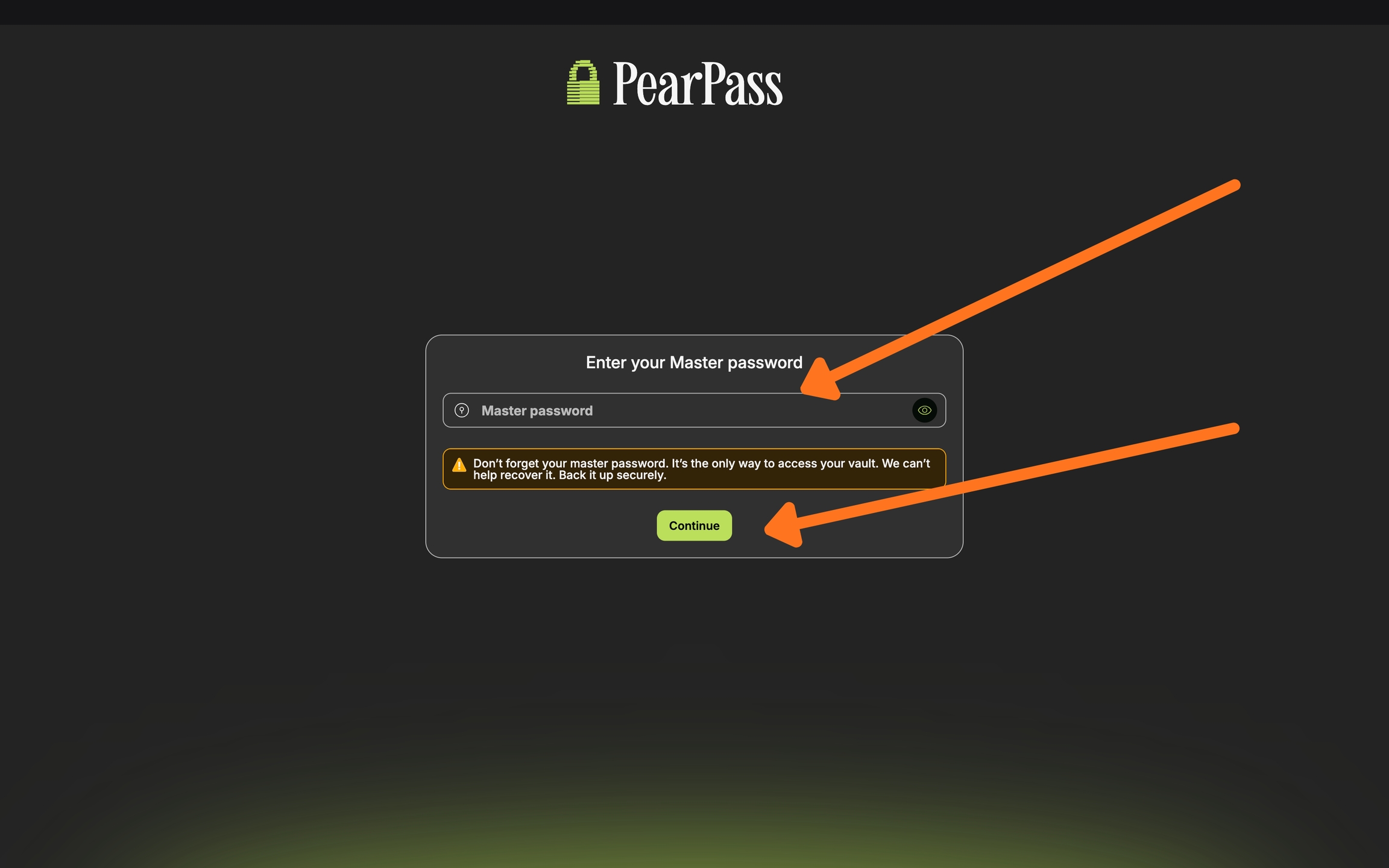
Open PearPass and sign in
Open your PearPass application on your computer and sign in with your master password.
Select the vault
Select the vault that contains the item you want to edit. For this example, we'll use the PearRuntime Credentials vault.

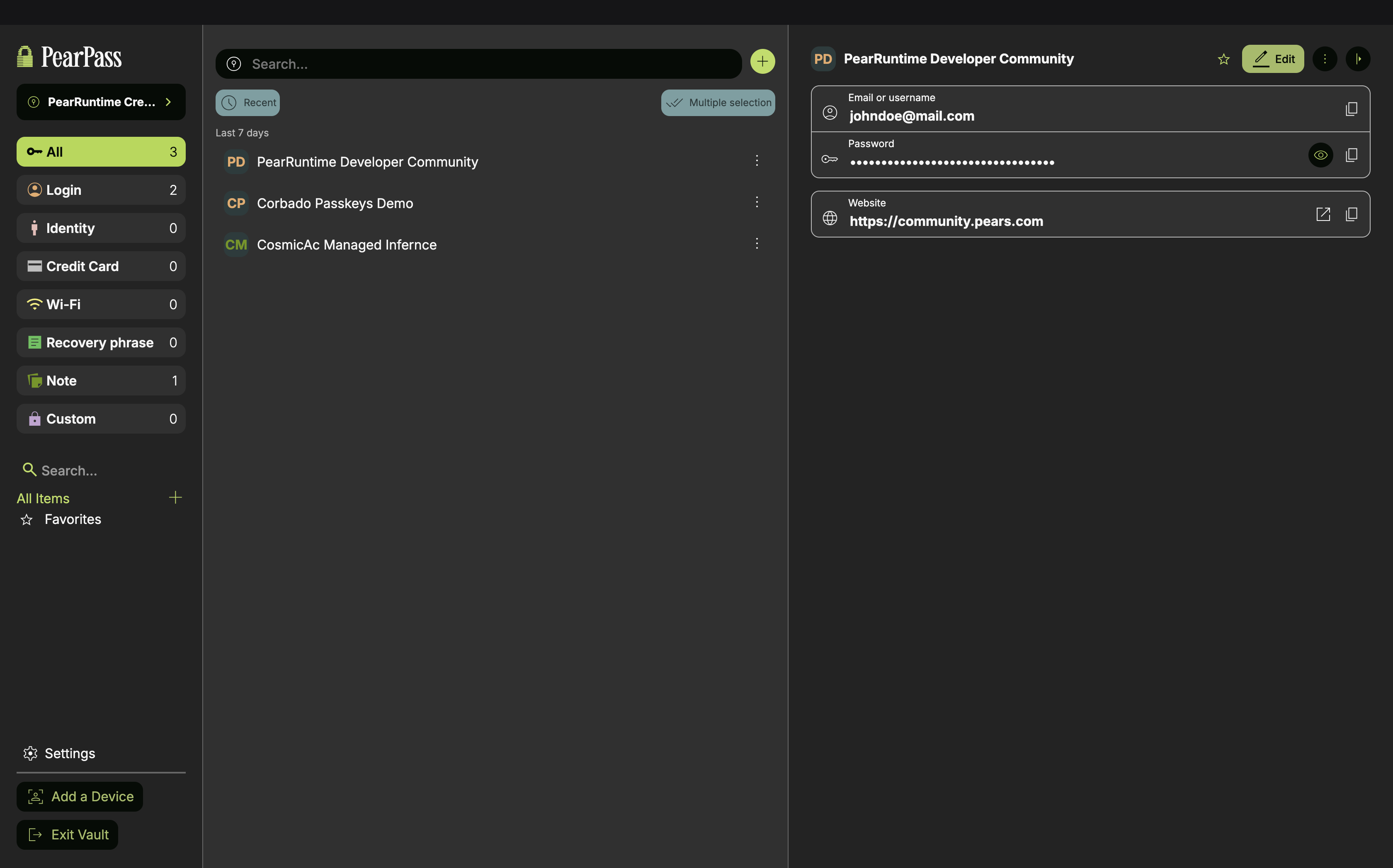
Select the item
Find the item you want to edit in the vault list and click on it to open its details. In this example, we'll be editing the PearRuntime Developer Community entry.
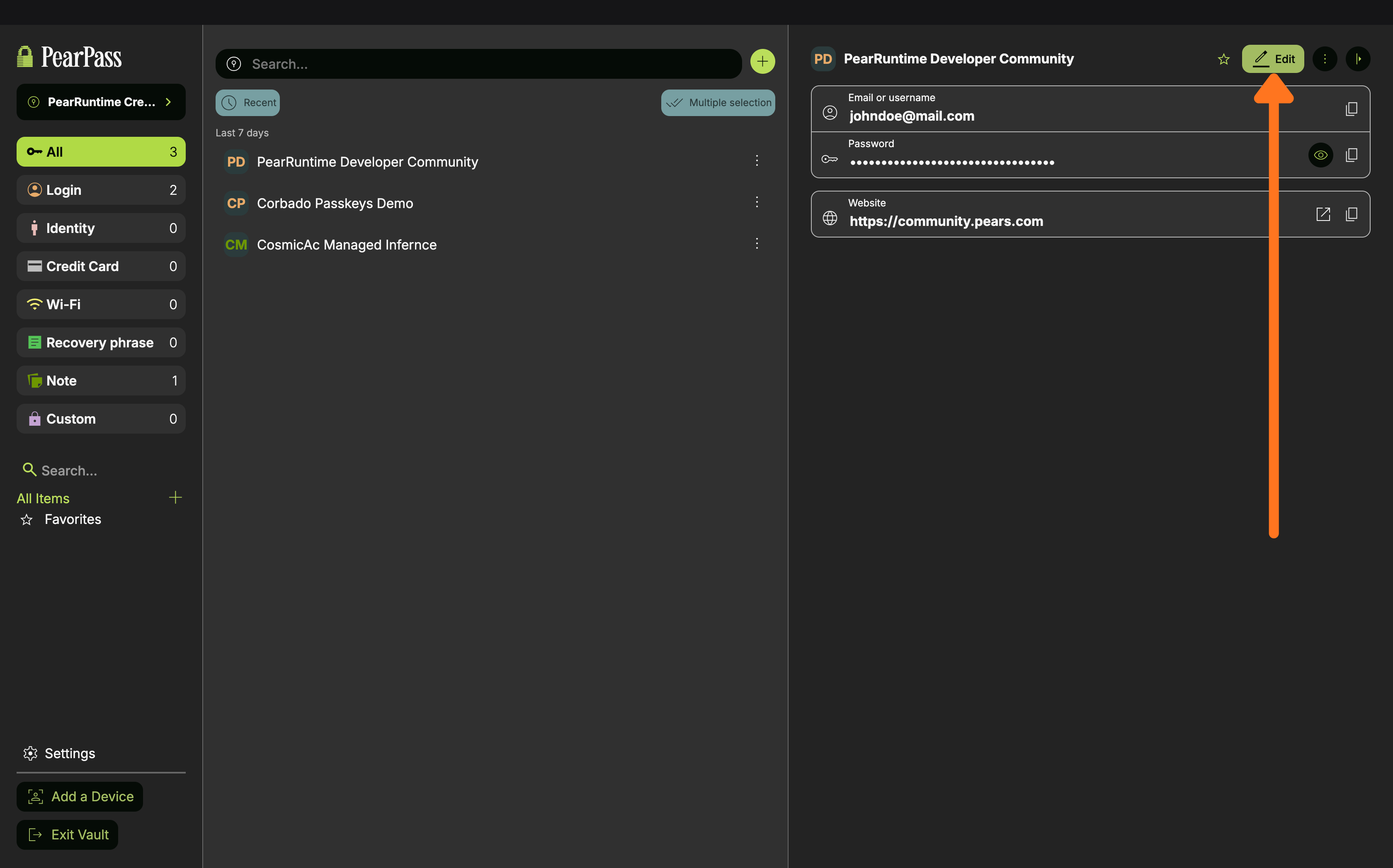
Click Edit
Click on the Edit button.
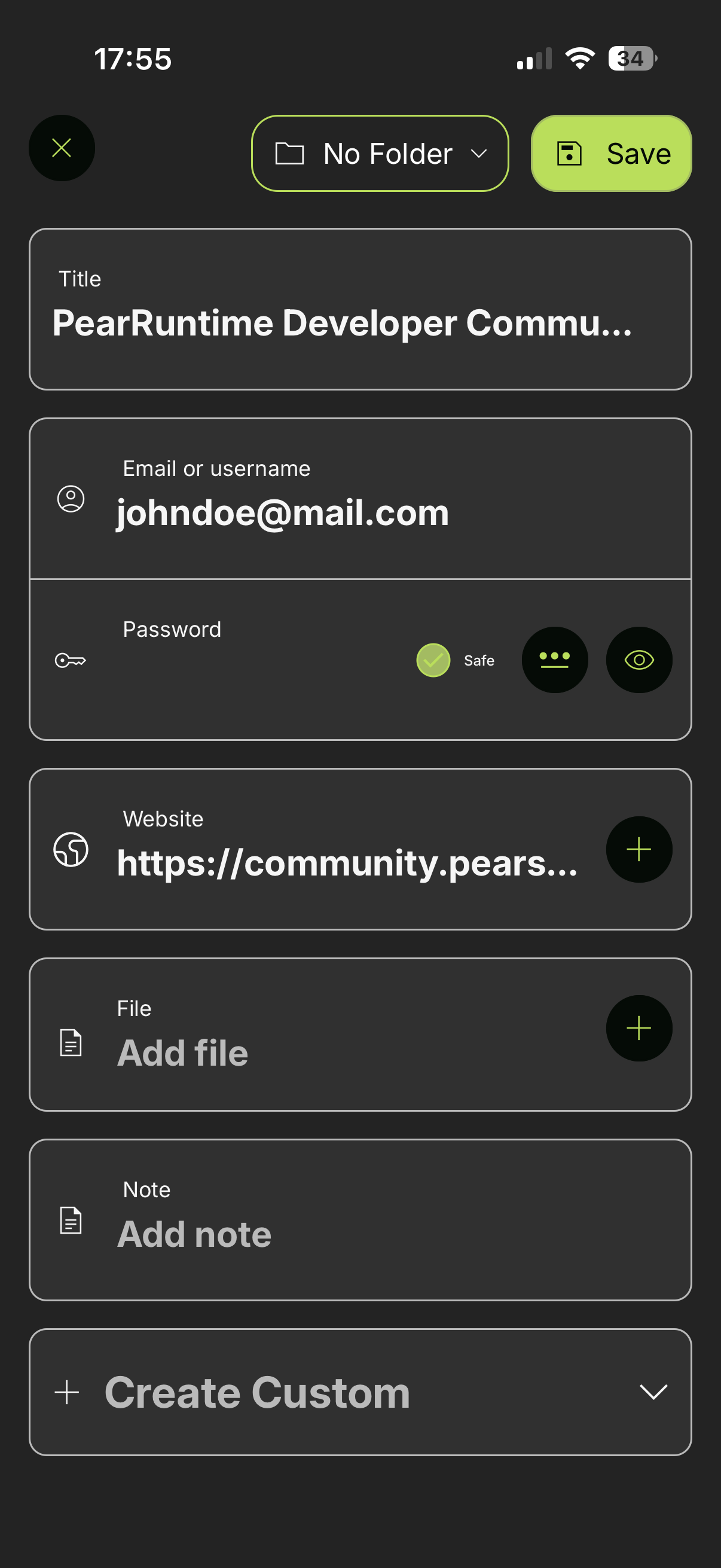
Update the fields
Update the fields as needed.
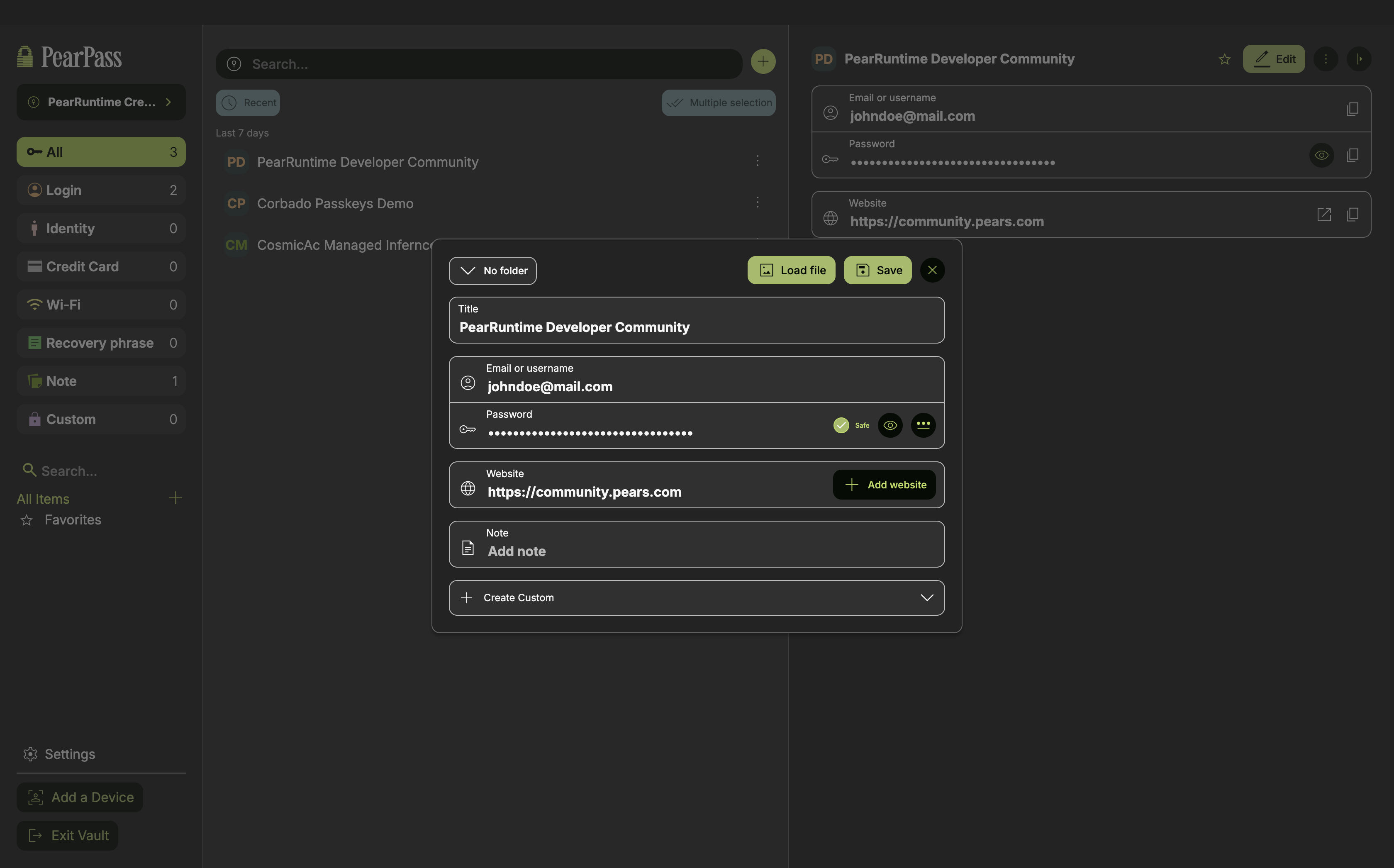
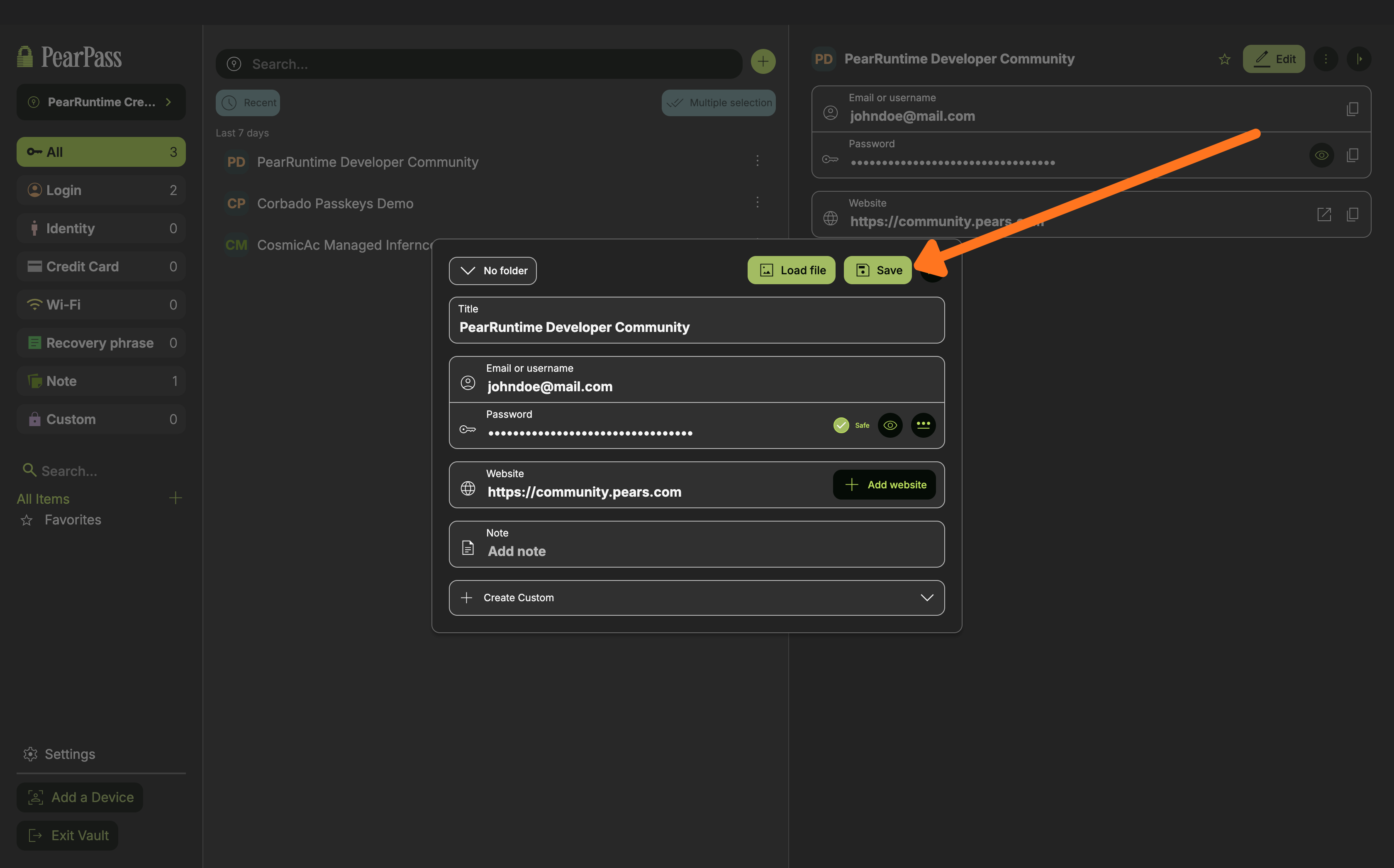
Save your changes
Click on the Save button to apply your changes.
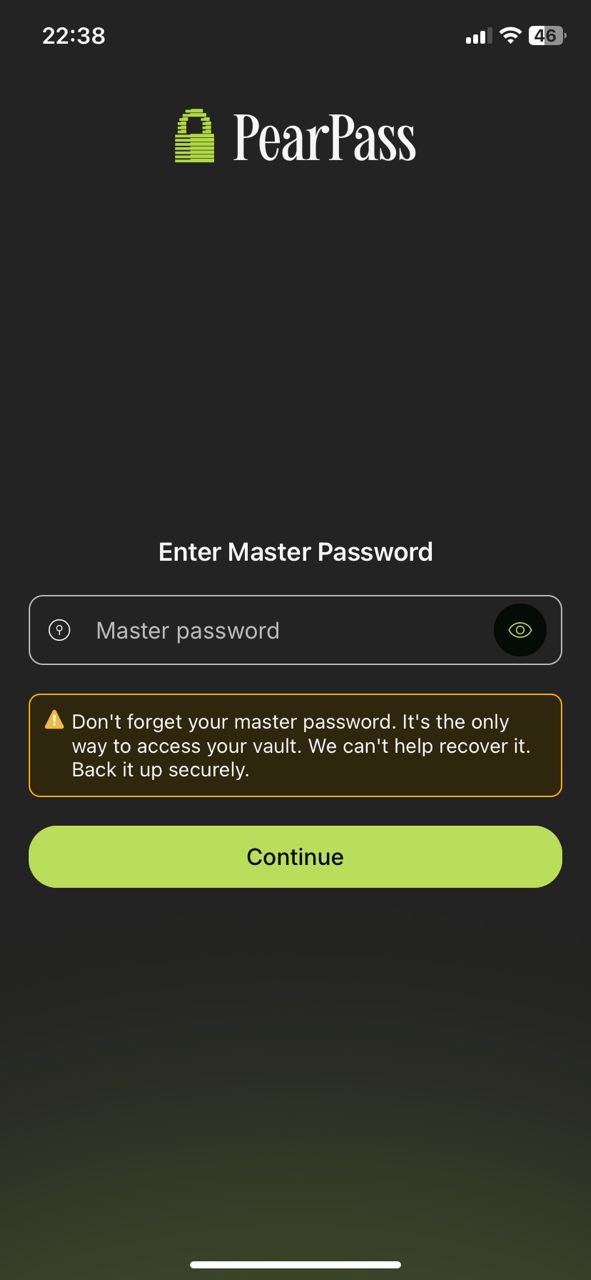
Open PearPass and sign in
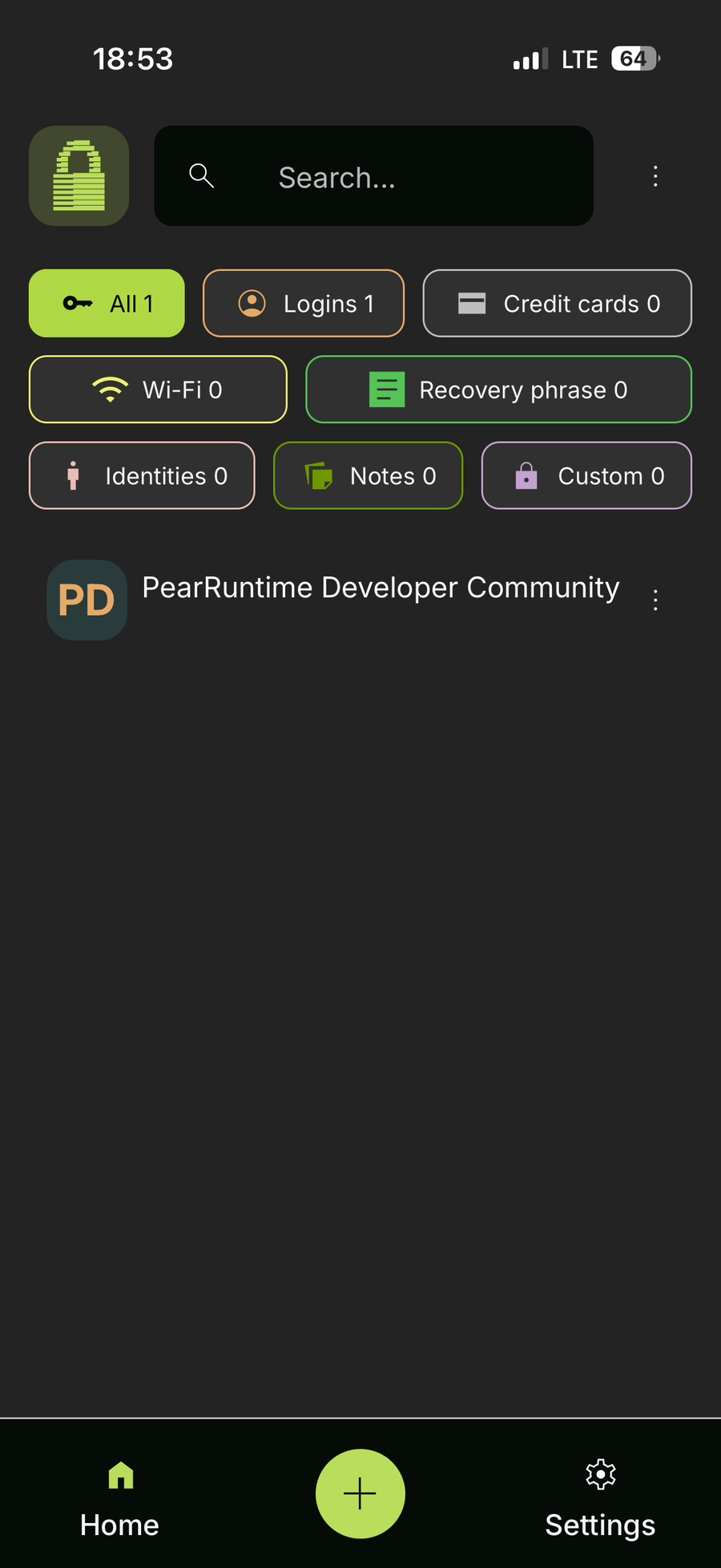
Open PearPass on your mobile device and sign in with your master password.
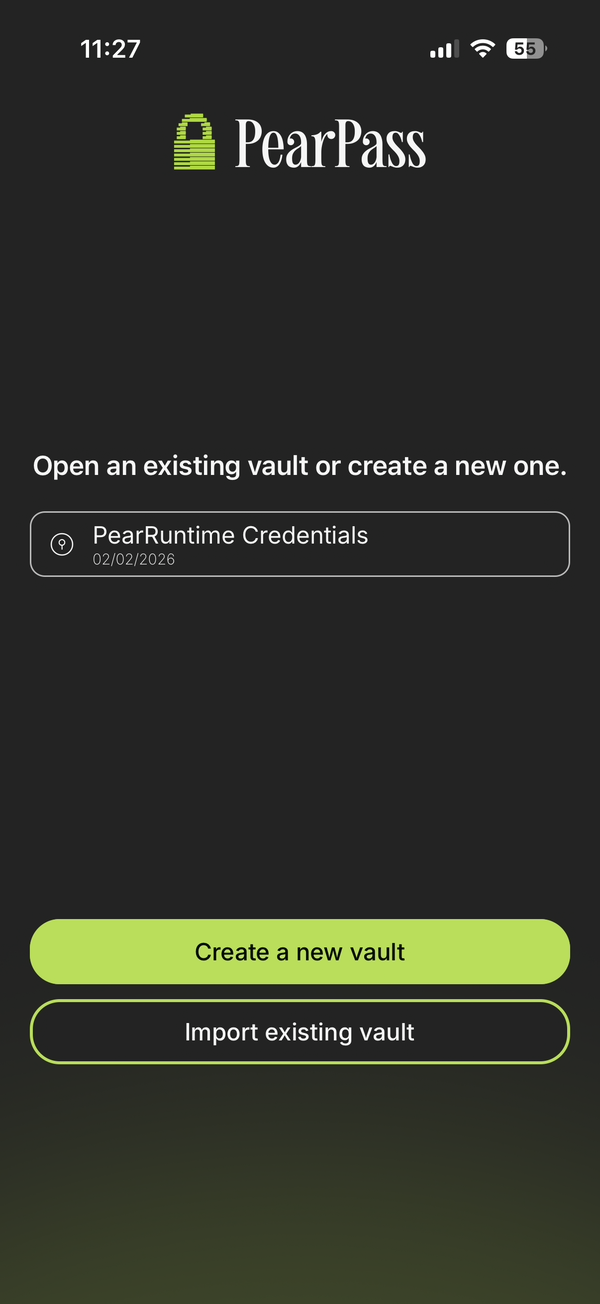
Select the vault
Select the vault that contains the item you want to edit. For this example, we'll use the PearRuntime Credentials vault.
Select the item
Find the item you want to edit in the vault list, then click it to open its details. In this example, we'll be editing the PearRuntime Developer Community entry.
Click Edit
Click on the Edit button.

Update and save
Update the fields as needed, then click on the Save button to apply changes.